
Transactions
All your transactions live in the Transactions tab: the ones that arrive on their own from your automatic sources and the ones you log yourself. This guide covers what you can do with them once they're there.
Browse and filter
The list is grouped by day, with the period summary on top (income, expenses, and net). To find anything:
- Search 🔍 by merchant, note, category, or description.
- Filter by category (several at once), account, type (expense/income/transfer), tag, or "receivable" only.
- Change the period with the selector at the top (current month, previous, or custom range). If you use several currencies, the currency chips filter everything.
Edit a transaction
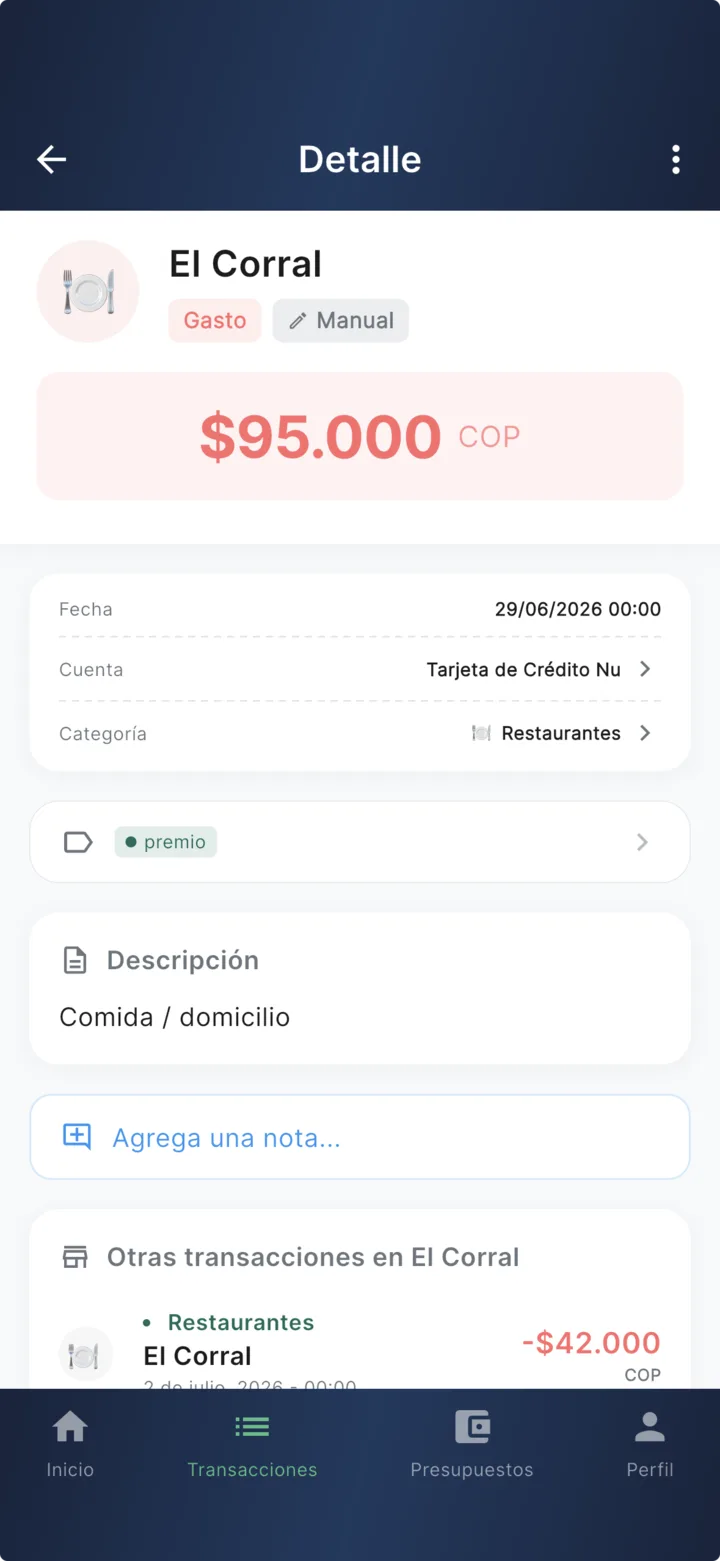
Tap any transaction to see its detail. From there:
- Recategorize in two taps — tap the category and pick another from the picker, no full form needed. Plus, Finvot creates an automatic rule so that merchant never gets it wrong again.
- Edit everything else with the pencil button: amount, date, merchant, description, note, account, and tags.
- Mark it "receivable" 🤝 if it's an expense someone owes you (the dinner you covered). Then filter by "receivable" and see how much you're owed in total.
- Convert it into a transfer — if an "expense" was really money moving between your accounts (the credit card payment, say), convert it and stop inflating your spending.
- Add it to a subscription — link the charge to one of your subscriptions so it counts in its history and monthly cost.
- Delete it from the detail menu (asks for confirmation; can't be undone).
Split a transaction
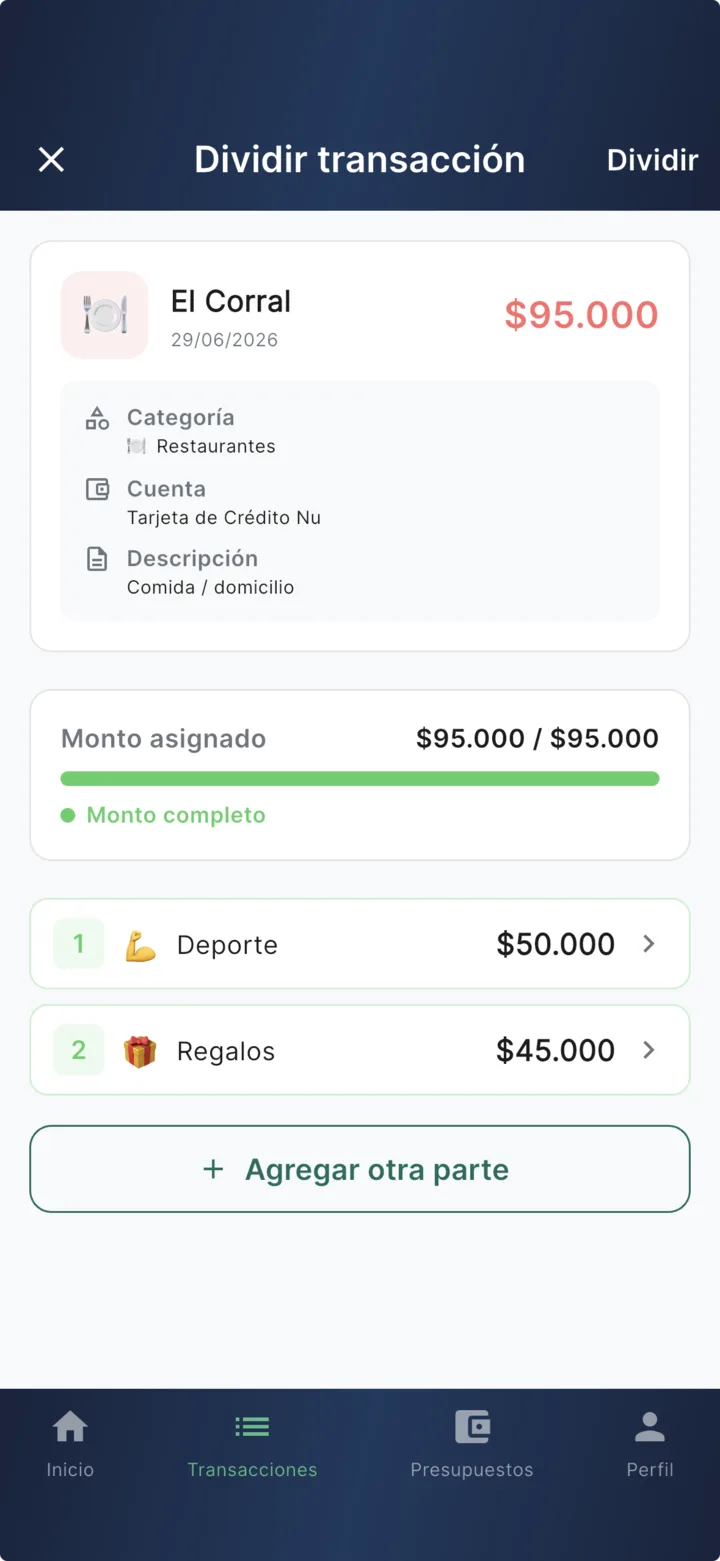
One supermarket payment that was actually groceries + medicine + a gift? Split it so each part lands in its own category:
Open the transaction and tap “Split”
Assign an amount and category to each part
Use “Complete with remaining” to close the math exactly
Add more parts if needed (+) and confirm
The original is replaced
When you split, the original transaction disappears and is replaced by the parts. The parts must add up to exactly the original amount, so your account balance doesn't change.
Transfers between your accounts
Moving money between your own accounts (paying the credit card from savings, funding your USD account) is neither an expense nor income — that's why transfers don't count in budgets or analysis.
Create a transaction and choose the “Transfer” type
Pick the source account, destination account, and amount
If the currencies differ, confirm the conversion
Finvot calculates the rate automatically, or you type it along with the destination amount.
In the list, the transfer shows as a source → destination block on both accounts.
To change a transfer's amount or accounts
The two transactions of a transfer are linked, so their amount and accounts can't be edited directly: delete it and create it again. Description and notes can be edited normally.
Good to know
- Duplicates: covered. If the same purchase arrives through two sources (Apple Pay and the bank email, say), Finvot detects it and logs it once — automatic, nothing for you to do.
- Hit your plan's limit? Incoming transactions are blocked, not lost: you'll see them under Profile → Management → Pending transactions, and after upgrading you can reprocess them all.