
Connect your email (Outlook)
This is done once and lets Finvot automatically receive your bank transaction alerts from Outlook.
You'll do 2 things
- Confirm forwarding in Outlook.
- Create a filter so only transaction emails are forwarded to Finvot.
⌛ Estimated time: 5 minutes
Important
Make sure to do this setup from a computer (laptop or desktop) using a web browser. This setup CANNOT be done from phones or mobile apps (Gmail app, Outlook app, etc.).
0. Before you start
- Identify which inbox receives your bank notifications (Gmail, Outlook, Apple Mail, or another).
- This guide only covers Outlook. If you need to set up a different email, go to the matching documentation.
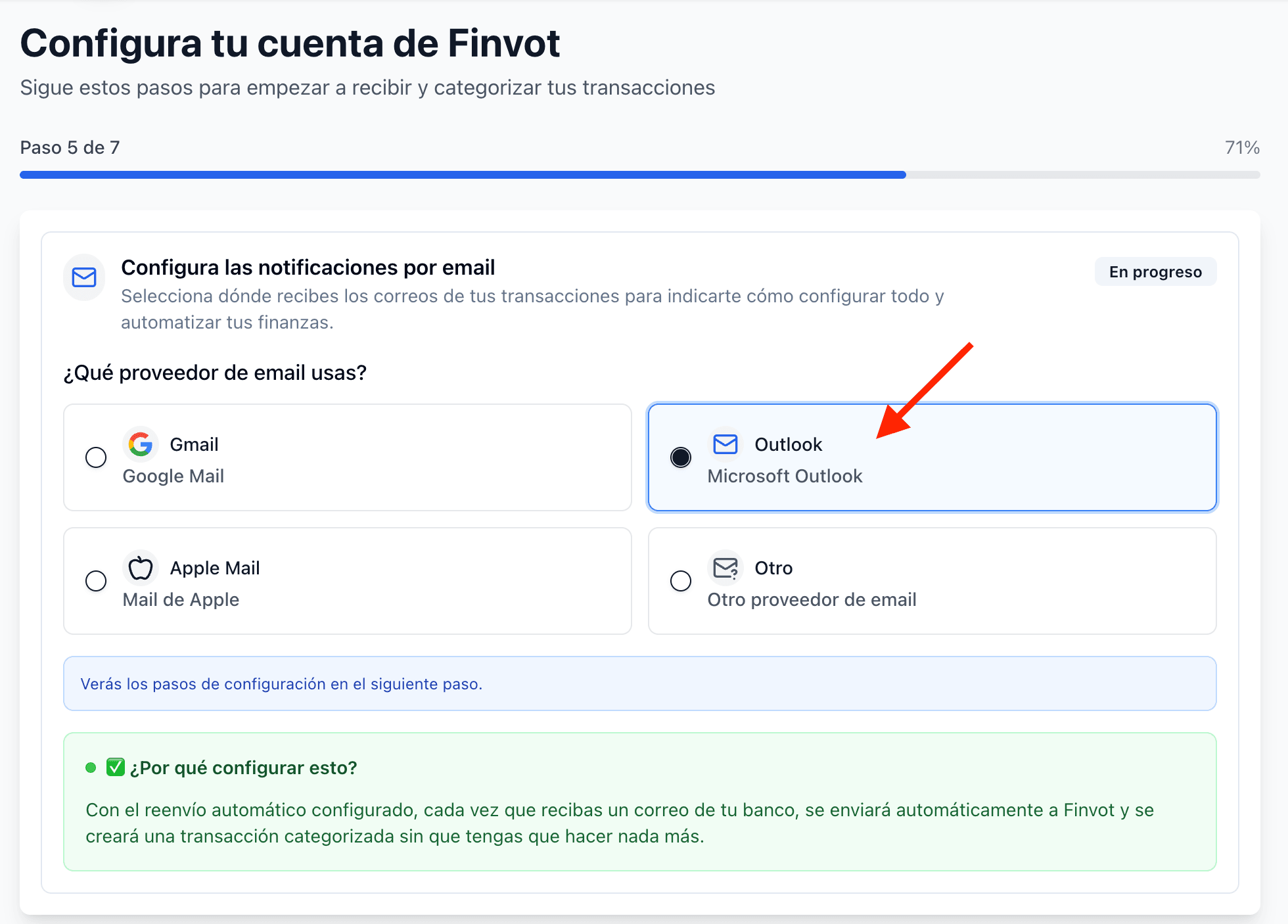
a) In onboarding, select Outlook as your provider
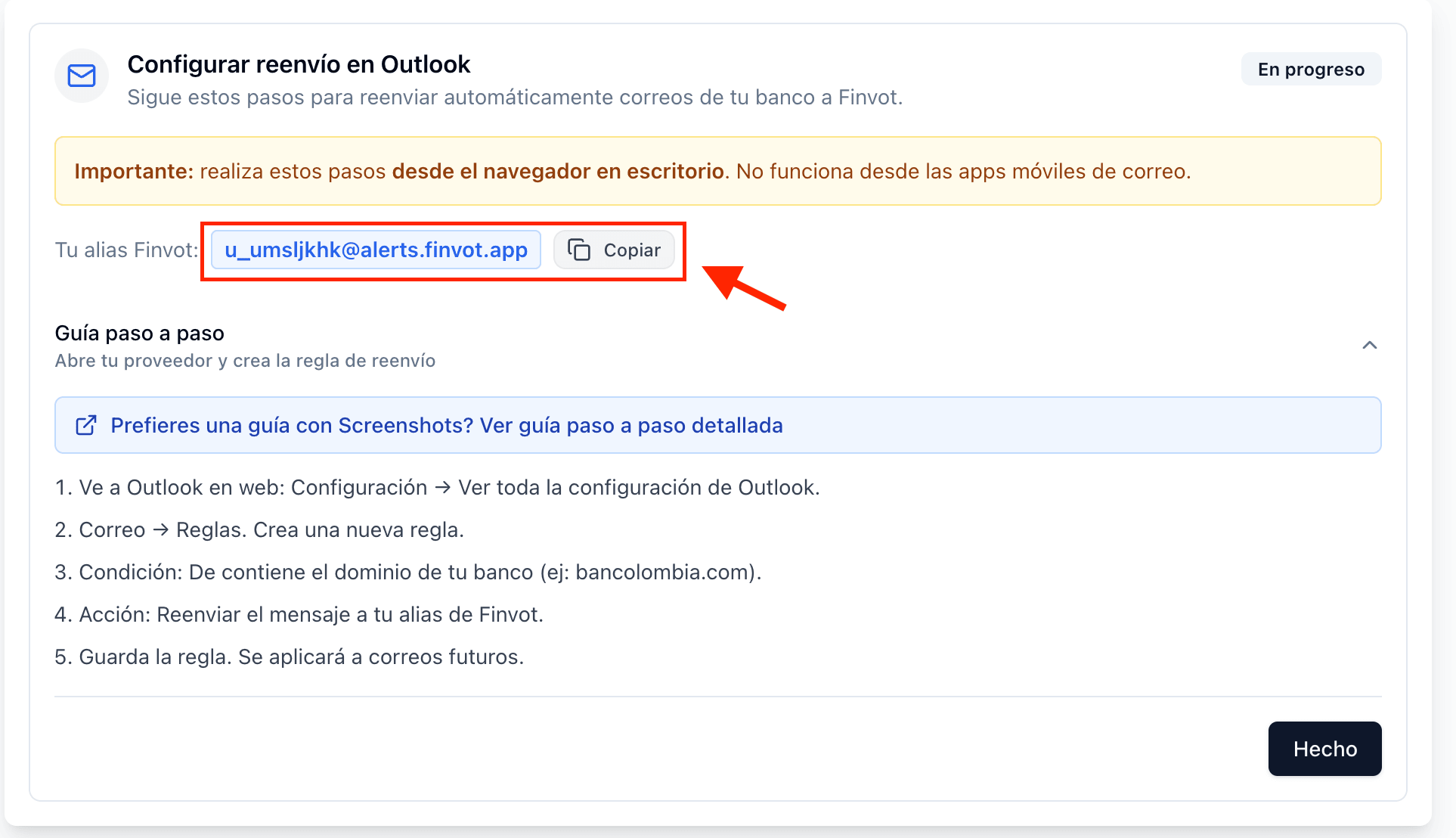
b) Copy your Finvot alias from the onboarding screen
Your unique alias in Finvot looks like this: <your_alias>@alerts.finvot.app. It's different for each user and you'll use it to forward your emails to Finvot securely.
Important
Before continuing, check which domain(s) your bank uses to send you notifications and alerts when you make a purchase. This matters for a later step.
Step 1 · Create a forwarding rule in Outlook
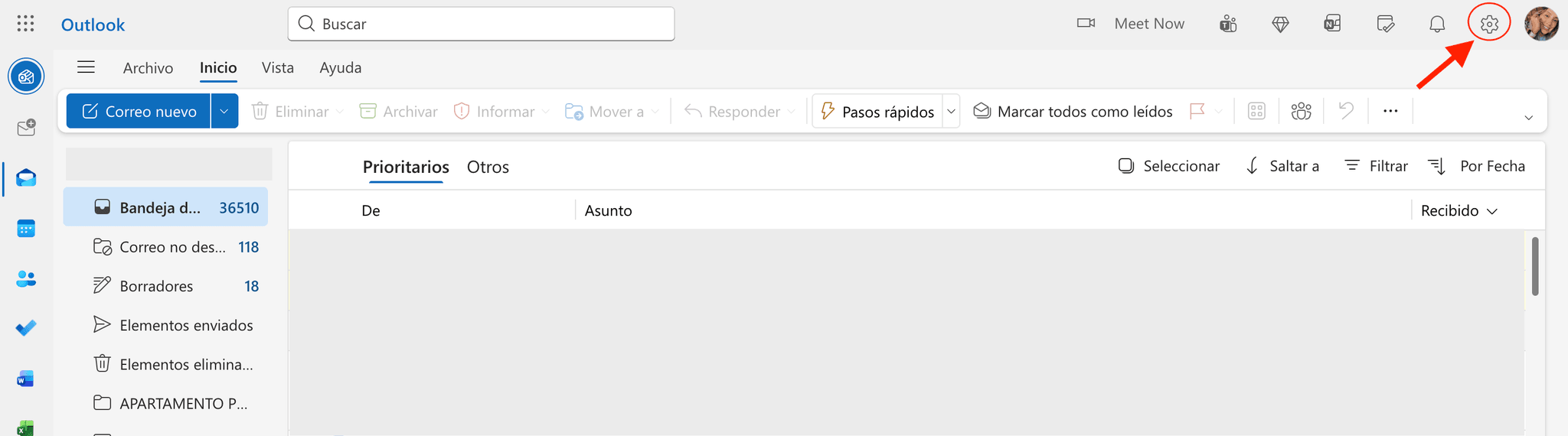
Open Outlook on the web
Go to outlook.live.com or outlook.office.com.
Open Settings (⚙️) in the top right
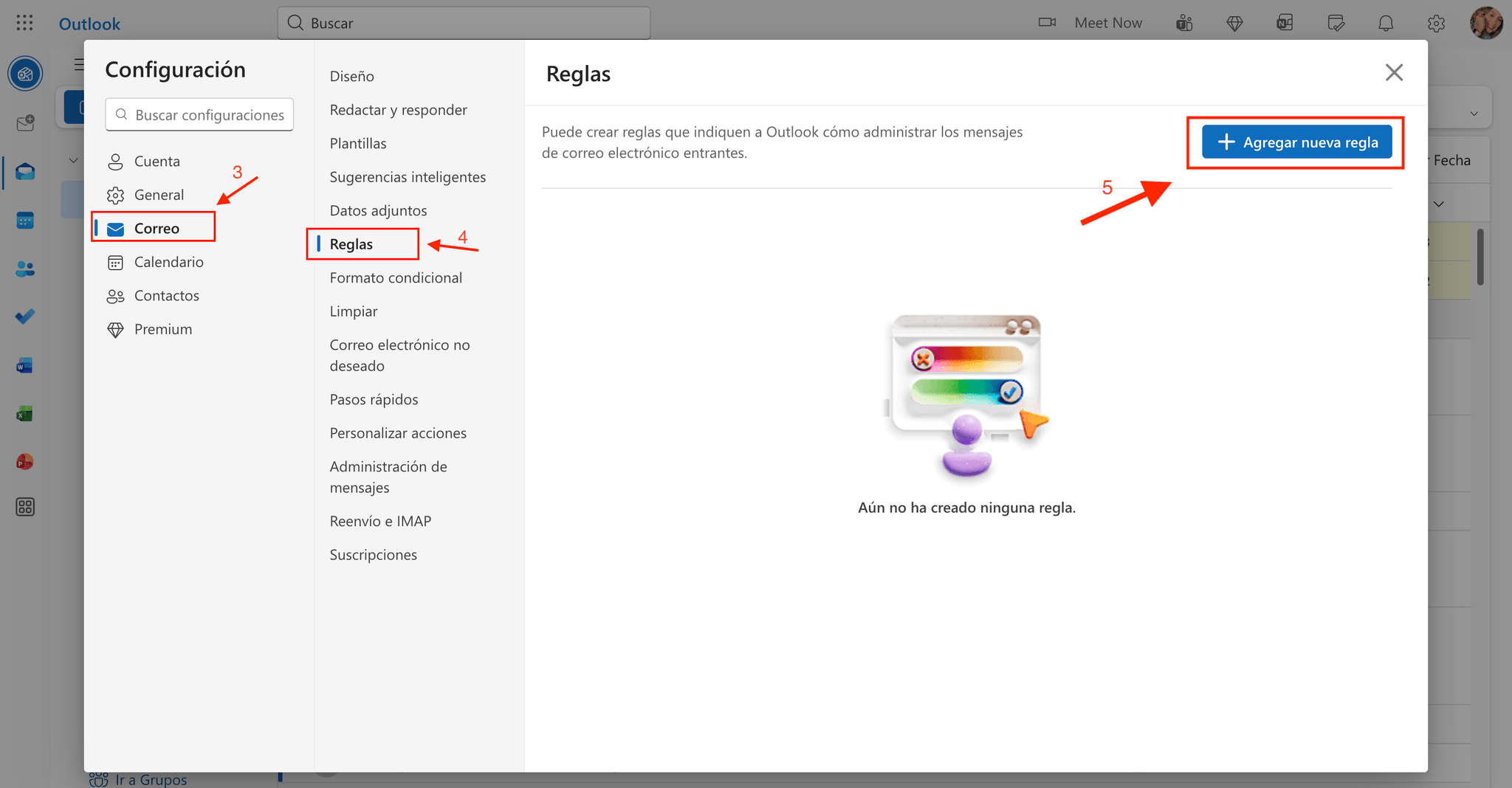
In the window that opens, go to ✉️ Mail
Select Rules
Click Add new rule
Step 2 · Set the condition (bank emails)
Name the rule
For example: “Forward bank alerts to Finvot”.
Select the “From” condition
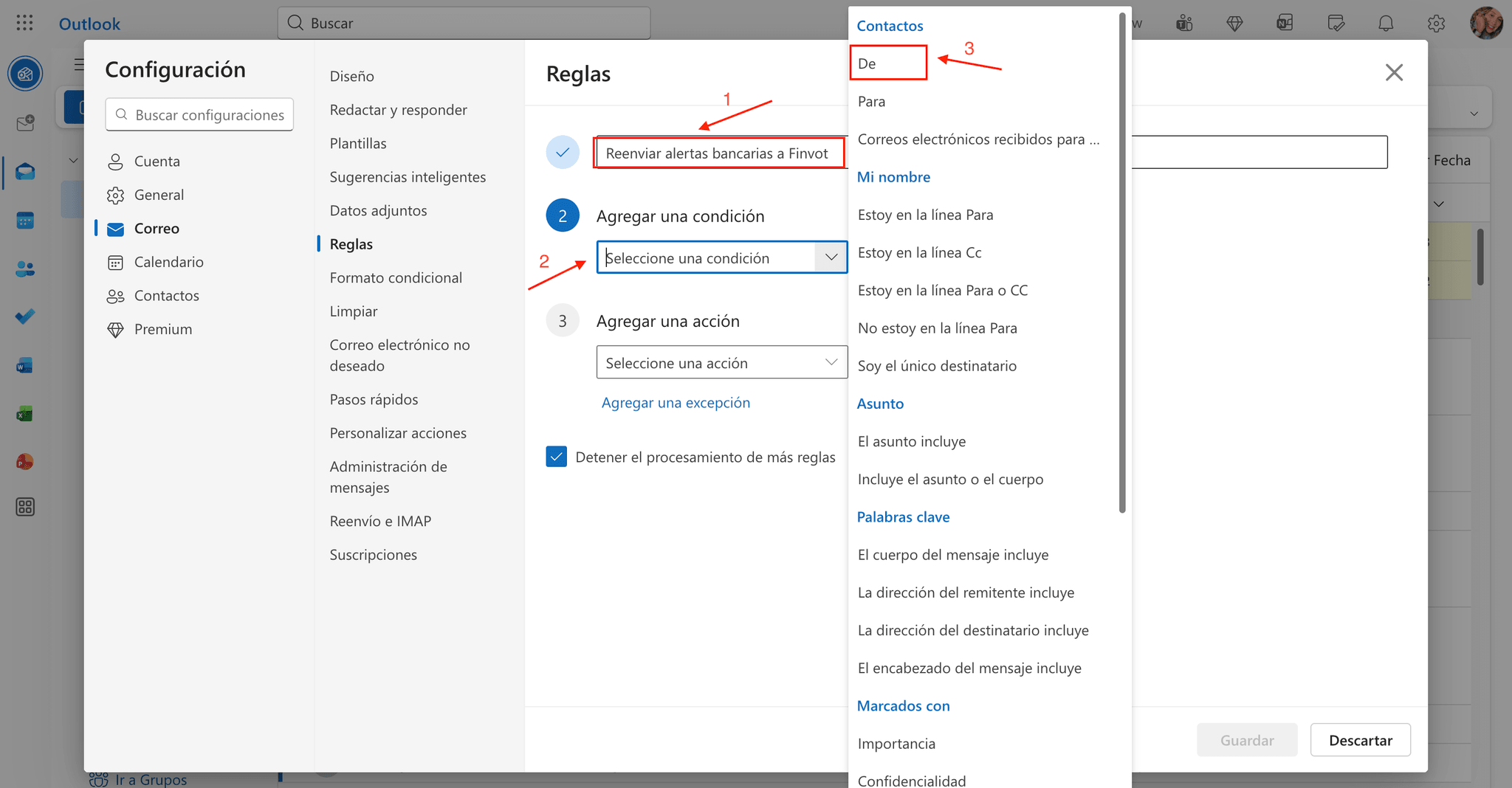
Enter the bank domain
Use the domain your bank uses to send alerts. Examples:
bancolombia.comscotiabankcolpatria.combbva.com
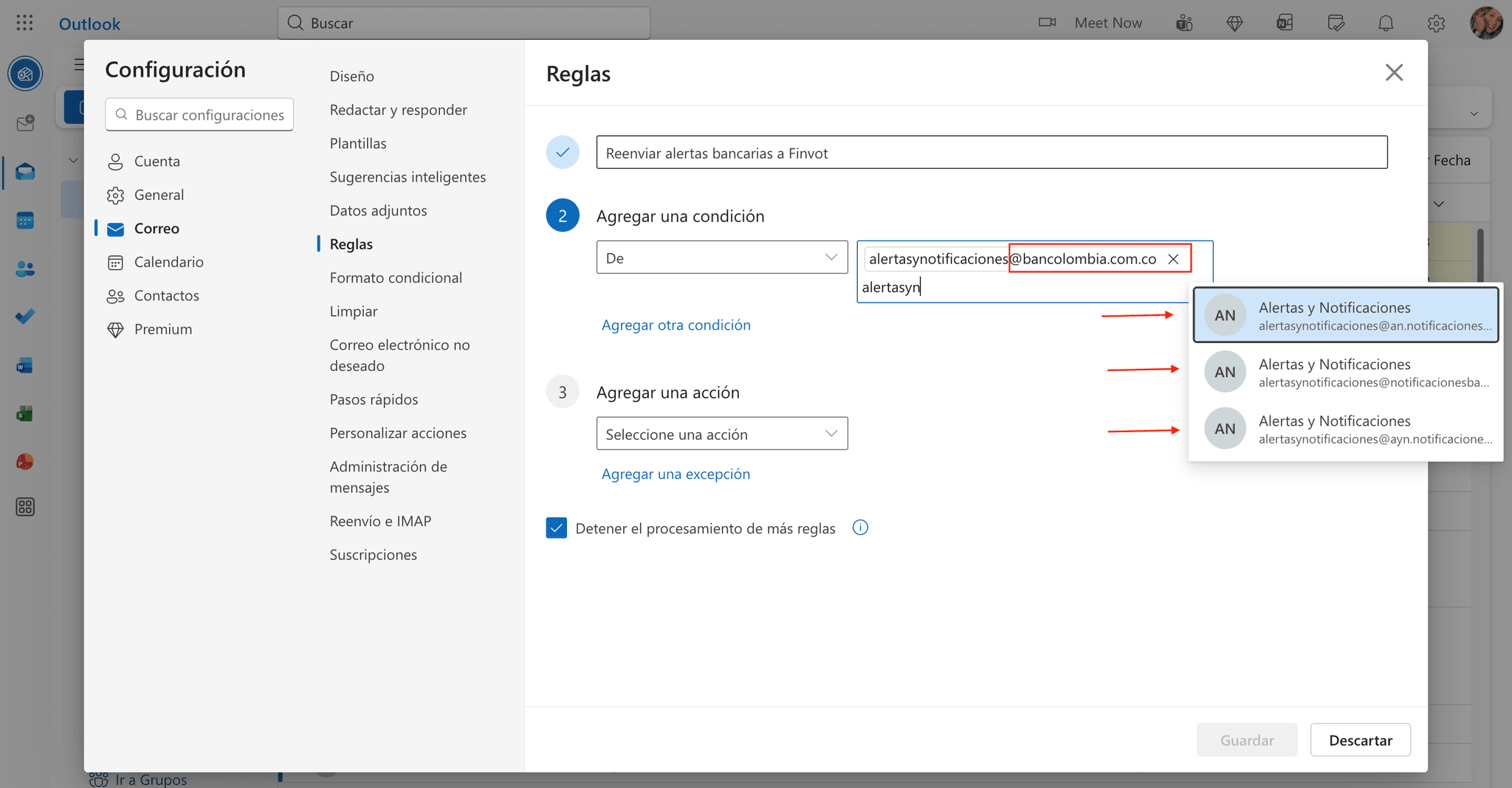
Important
Keep in mind there may be more than one email address. In this example we used Bancolombia and selected up to 4 different addresses. That's why it's important to check which addresses your purchase or transaction notifications come from.
Step 3 · Set the action (forward to Finvot)
Select the “Forward to” action
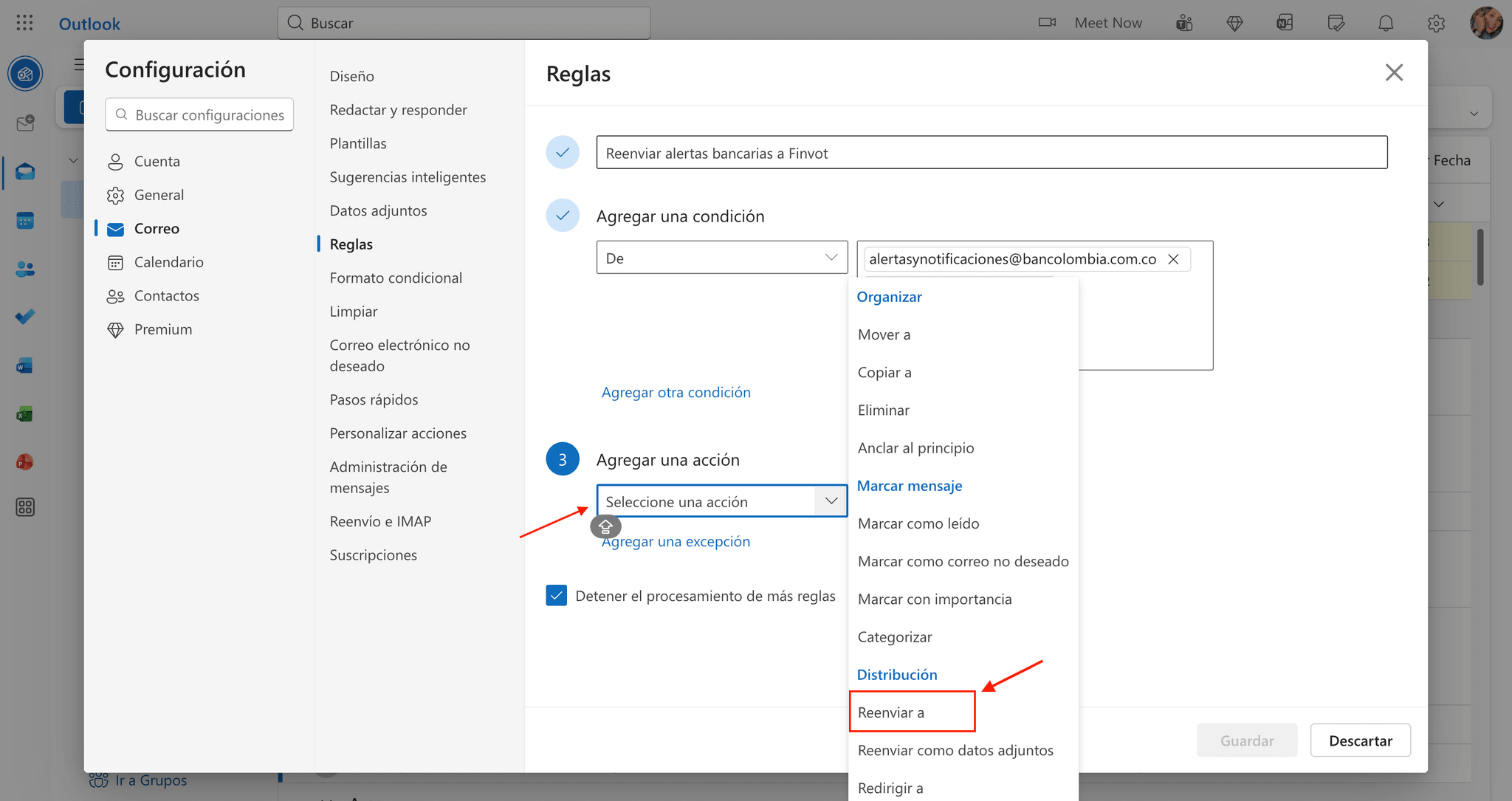
Paste your Finvot alias
Paste it exactly as you copied it from the app: <your_alias>@alerts.finvot.app
Check “Stop processing more rules” (optional)
It only matters if you have other rules in Outlook: it prevents any of them from moving or changing the bank email before it's forwarded to Finvot. If this is your only rule, you can leave it unchecked.
Save the rule
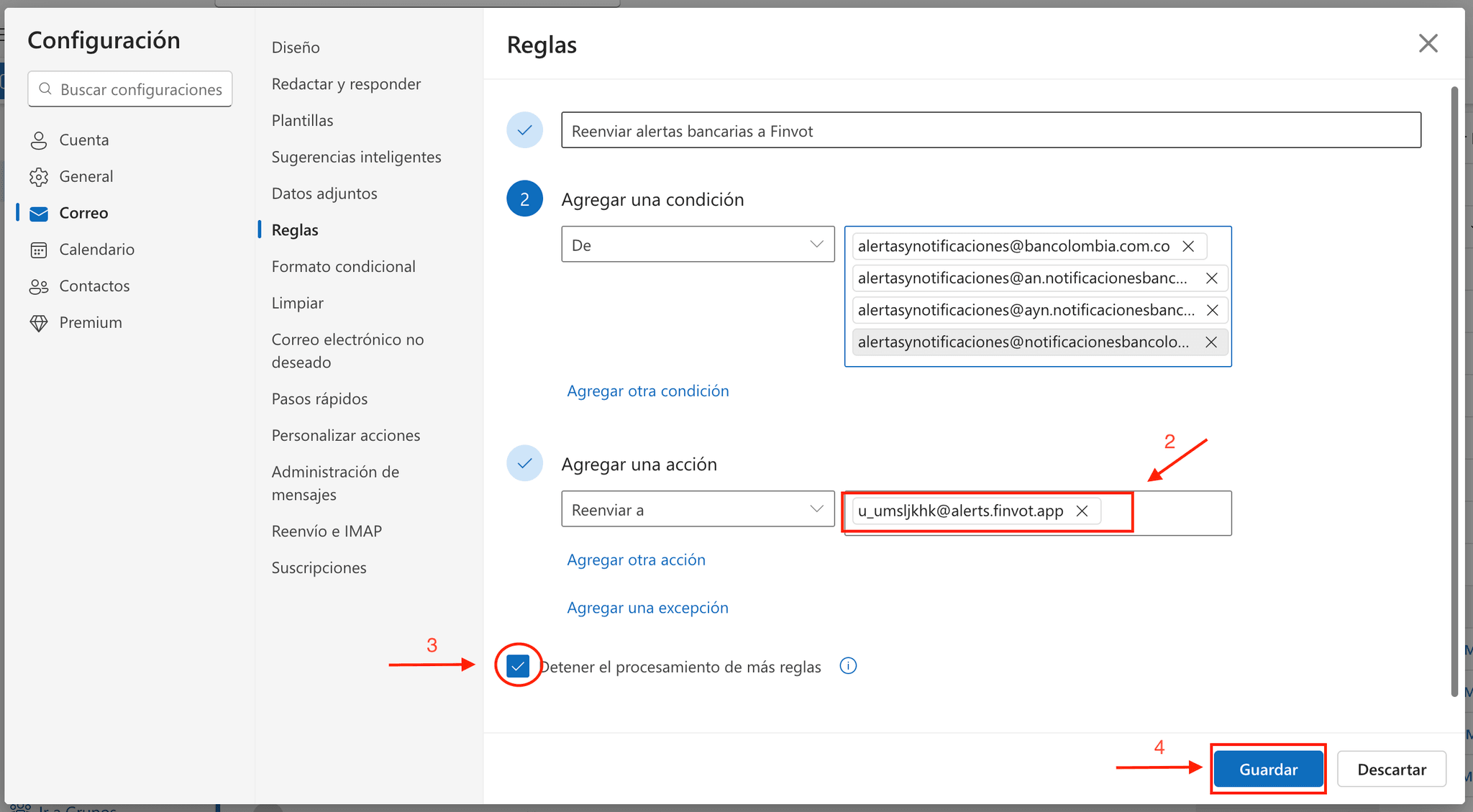
Expected result
- Outlook will automatically forward future emails from your bank to Finvot.
- Old emails will not be forwarded.
- You don't need to do anything else.
If you have multiple banks
Create one rule per bank using the corresponding domain.