
Budgets
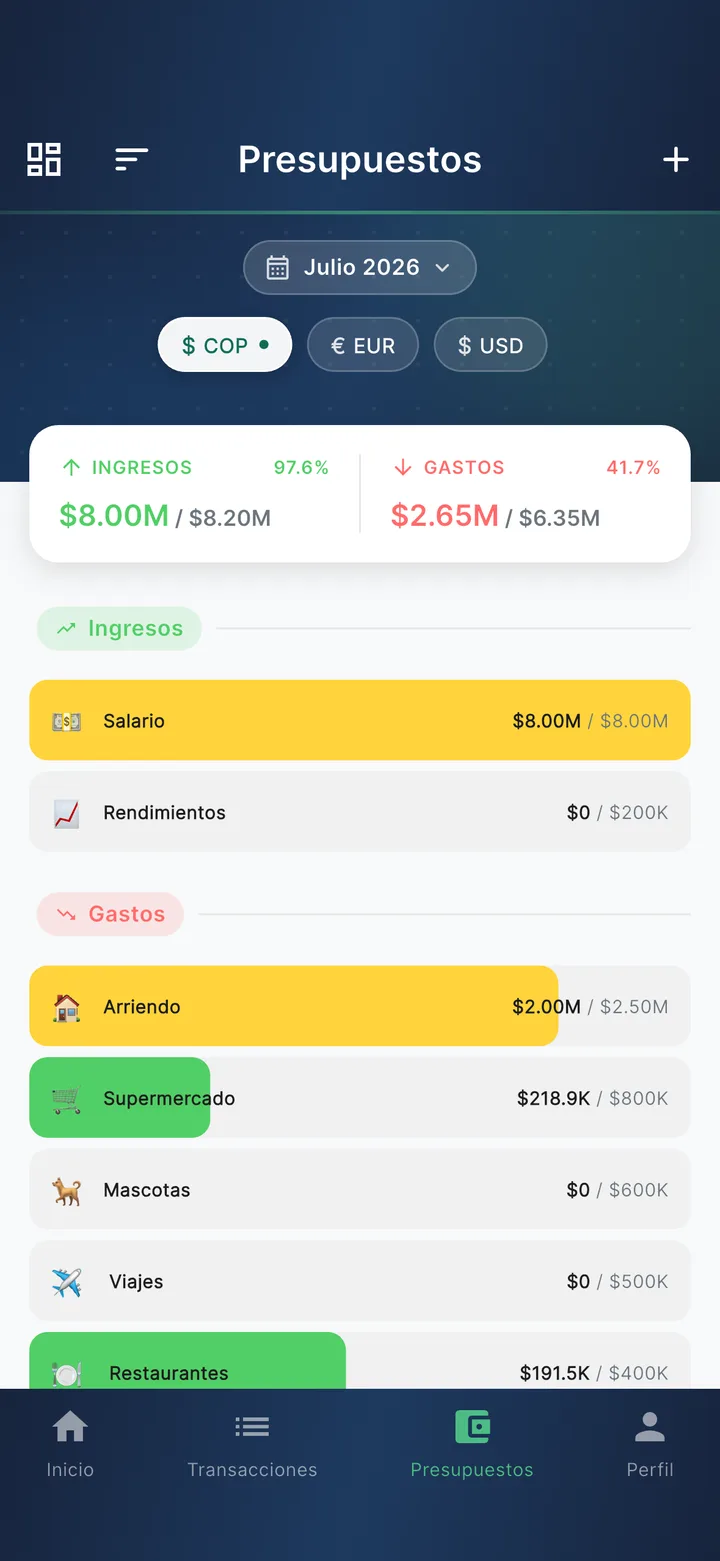
A budget in Finvot is simple: a monthly limit for one category — say, $800 for Food. Since your transactions log themselves, progress updates in real time and Finvot warns you before you go over.
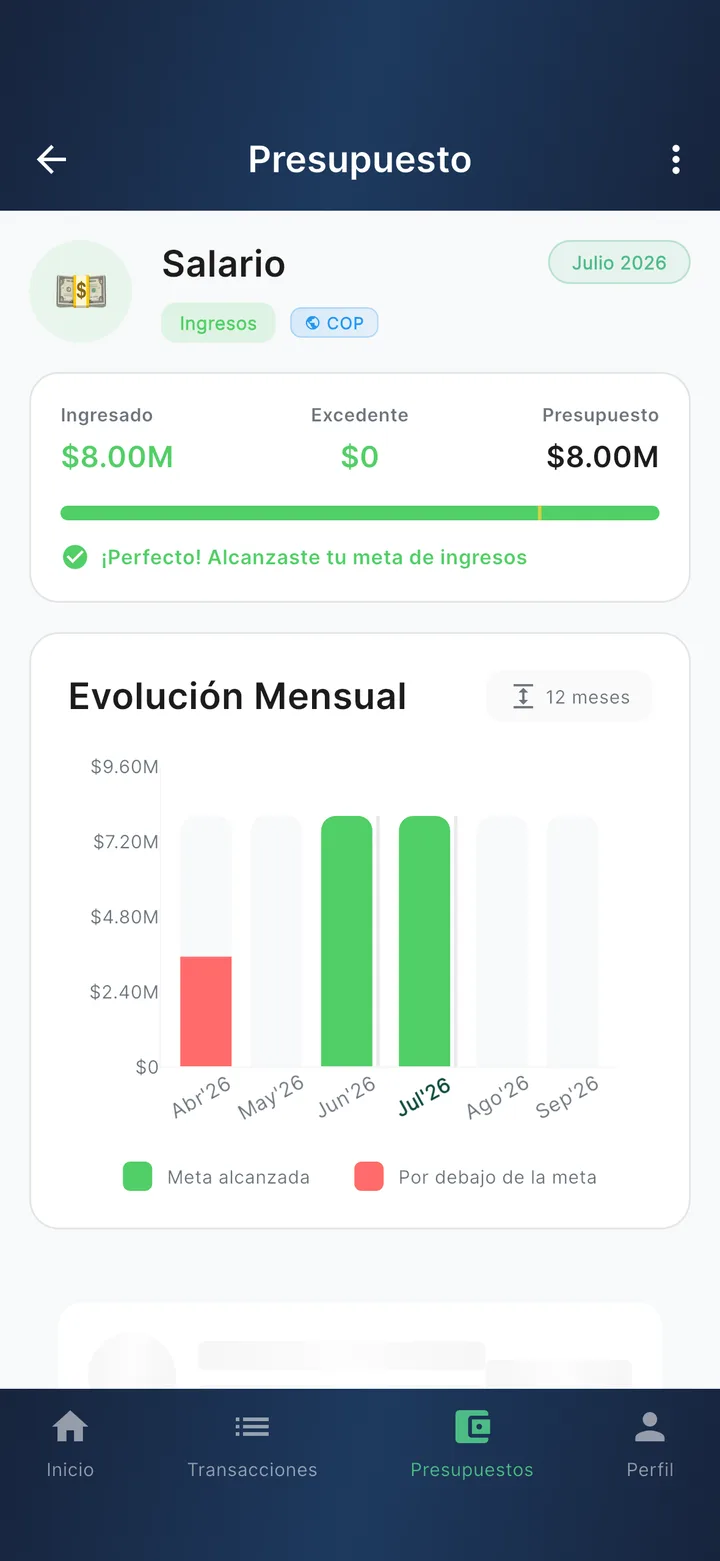
They also work in reverse: an income budget is a goal ("make $2,000 this month freelancing"), and Finvot celebrates when you reach it.
Create a budget
Go to the Budgets tab and tap +
Pick the type (Expense or Income) and the category
Pick the month and type the amount
Save
Set it up for the whole year
Budgets don't renew themselves each month. To avoid repeating the process, switch to "Multiple months" mode in the form: select the months, type an amount in "Same amount for all months", and create all 12 at once. You can adjust individual months anytime.
Read the traffic light
Every budget shows a progress bar colored by how you're doing:
| Color | Expenses | Income |
|---|---|---|
| 🟢 Green | All good | Goal reached or surpassed |
| 🟡 Yellow | At 80% or more | Close to the goal |
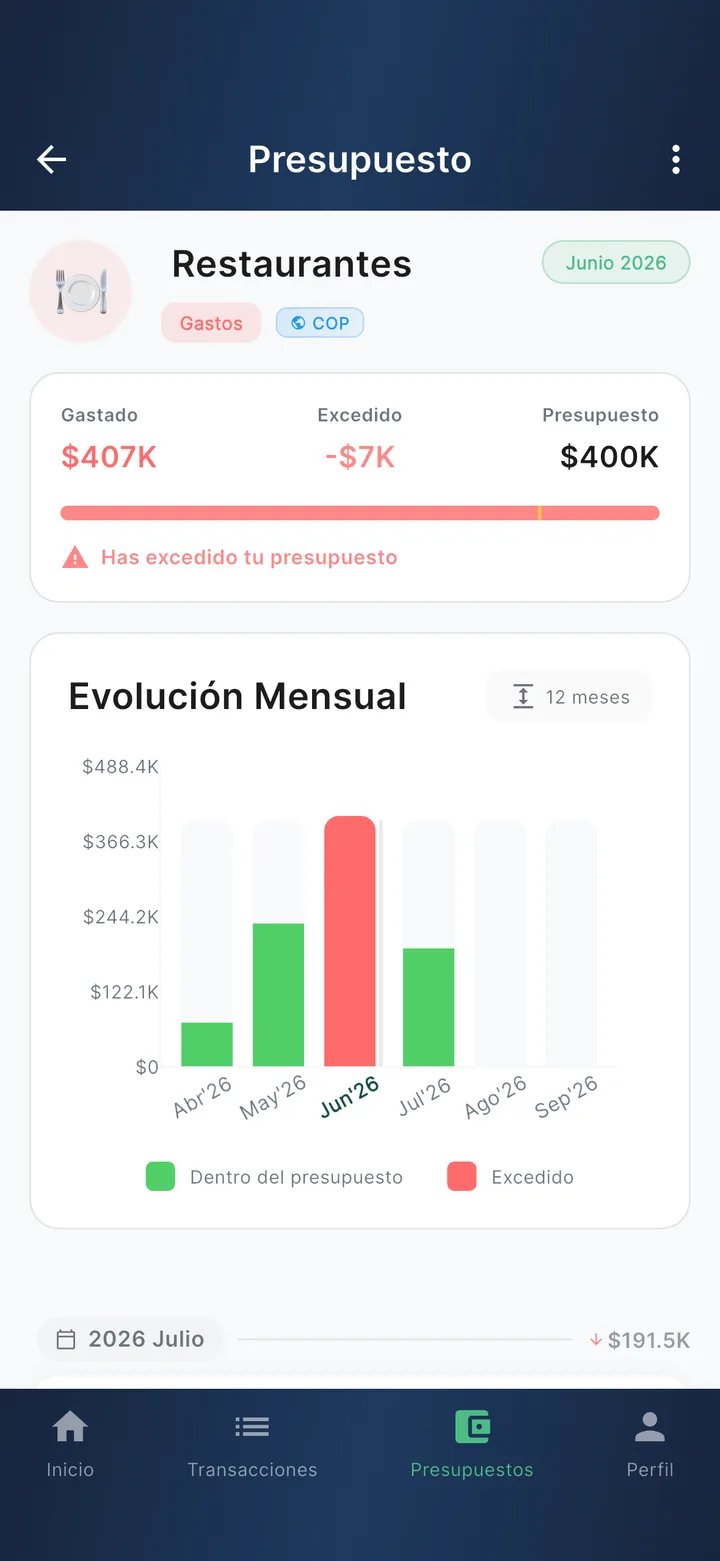
| 🔴 Red | Exceeded | Short of the goal |
Tap any budget to see its detail: how much is left (or how far over you went), that category's trend over recent months, and every transaction in the period.
What about subcategories?
Budgets are created per main category and automatically include the spending of its subcategories. In the detail you'll see the "By subcategory" breakdown: how much each one contributed to the month's total.
Alerts: know before you go over
Without opening the app, Finvot notifies you twice:
- At 80% of the budget — time to slow down.
- When you exceed it — so the hole doesn't grow.
You can turn these alerts on or off under Profile → Preferences → Budget alerts.
Unbudgeted spending?
If you have transactions in categories without a budget, the "Unbudgeted" card appears above the list with the total. Tap it to see those categories and give them a budget in two taps.
Your month doesn't start on the 1st — the financial cycle
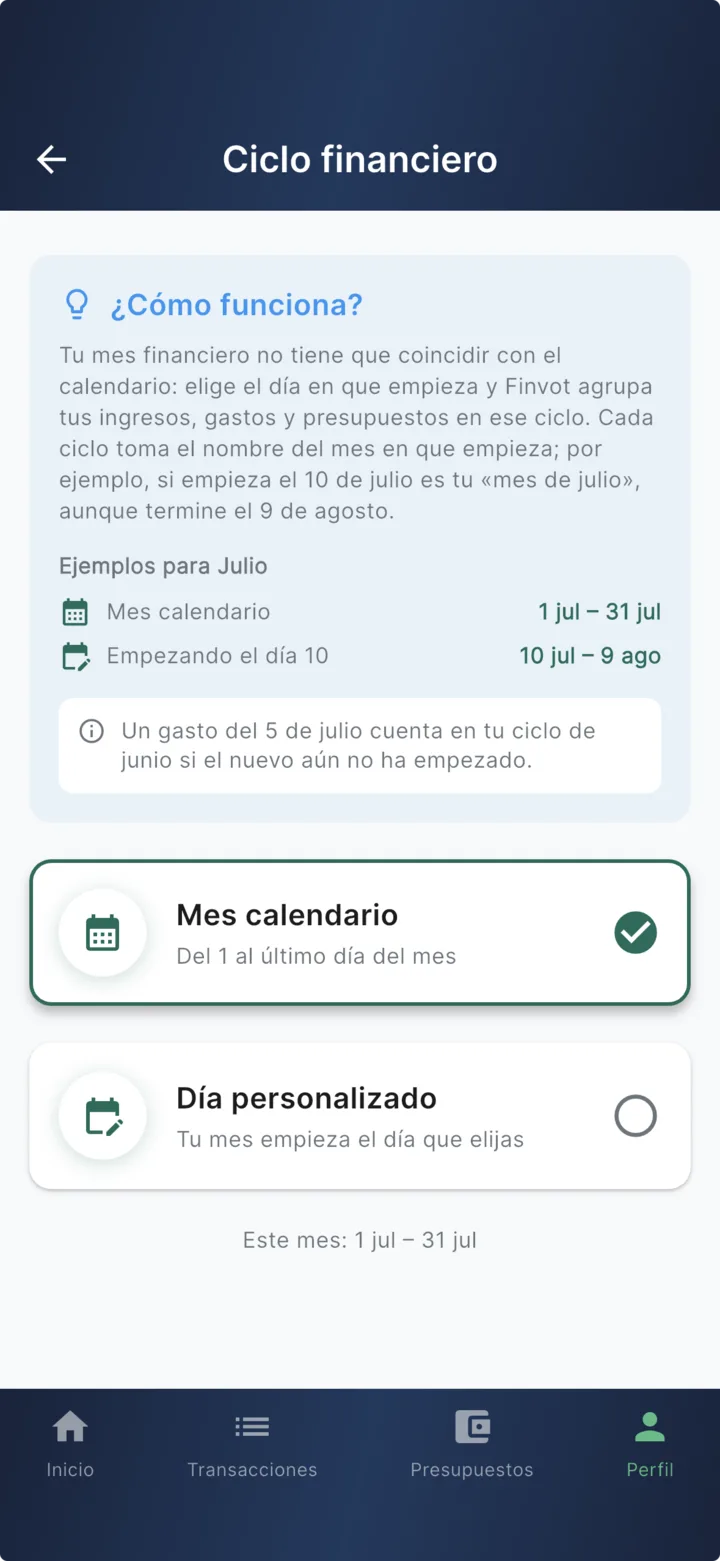
If you get paid on the 10th, 15th, or 25th, measuring budgets from the 1st to the 30th doesn't match your reality. Under Profile → Management → Financial cycle you can pick the day your month starts, and all your budgets, income, and expenses regroup around the new dates — nothing gets deleted.
Each cycle takes the name of the month it starts in: if yours starts on July 10th, that's your "July month", even though it ends on August 9th.
Good to know
- Multi-currency: each budget lives in a single currency and only counts spending in that currency (no conversion). If you spend in USD but your budget is in COP, that expense shows up as unbudgeted.
- Transfers between your accounts don't count against any budget — moving your money isn't spending it.
- Couples: if you share finances, budgets on shared categories add up both partners' spending and alert you both.
- Traveling? If you have a trip coming up, plan it separately with Trip Mode: its plan can add to your monthly Spending Limit.
- Deleting: you can remove just the selected month or the whole year for that category.